
Download VSLogonScreenCustomizer – free Windows logon screen customization tool
Overview
VSLogonScreenCustomizer (say that three times quickly) is a lightweight Windows utility that lets you replace the default blue‑hued log‑in background with any image you prefer. While the feature set is intentionally minimal—essentially changing the background picture—it does the job without demanding system resources or intrusive permissions. The app supports a broad range of image formats, including TIFF, JPEG, PNG, GIF, BMP, and WMPhoto, so you can use photos you’ve downloaded from the web, personal screenshots, or even custom‑made graphics. Although you cannot modify the user icon or other deeper elements of the log‑in screen, VSLogonScreenCustomizer offers a straightforward, secure way to personalize one of the most frequently seen Windows screens. If you’re looking for a free, no‑frills solution that focuses on a single purpose—customizing the Windows log‑on background—this tool delivers exactly that.
Key Features & Capabilities
- Background Image Replacement – Choose any supported image format (TIFF, JPEG, PNG, GIF, BMP, WMPhoto) to replace the default log‑on screen picture.
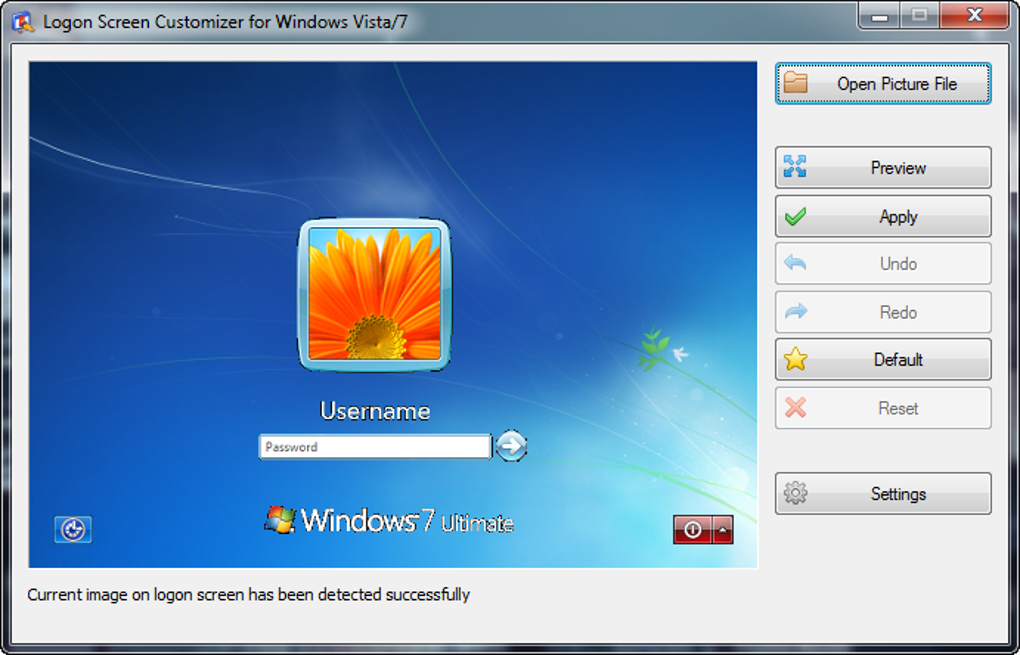
- Simple Interface – A clean, minimalistic UI that lets you browse, preview, and apply images in just a few clicks.
- Secure Operation – The app runs with standard user privileges, avoiding risky registry edits or system‑level hacks.
- Fast Installation – A tiny installer (<10 MB) that extracts and configures itself quickly on Windows 10, 8, and 7.
- Lightweight Footprint – Consumes less than 5 MB of RAM while idle, leaving ample resources for other tasks.
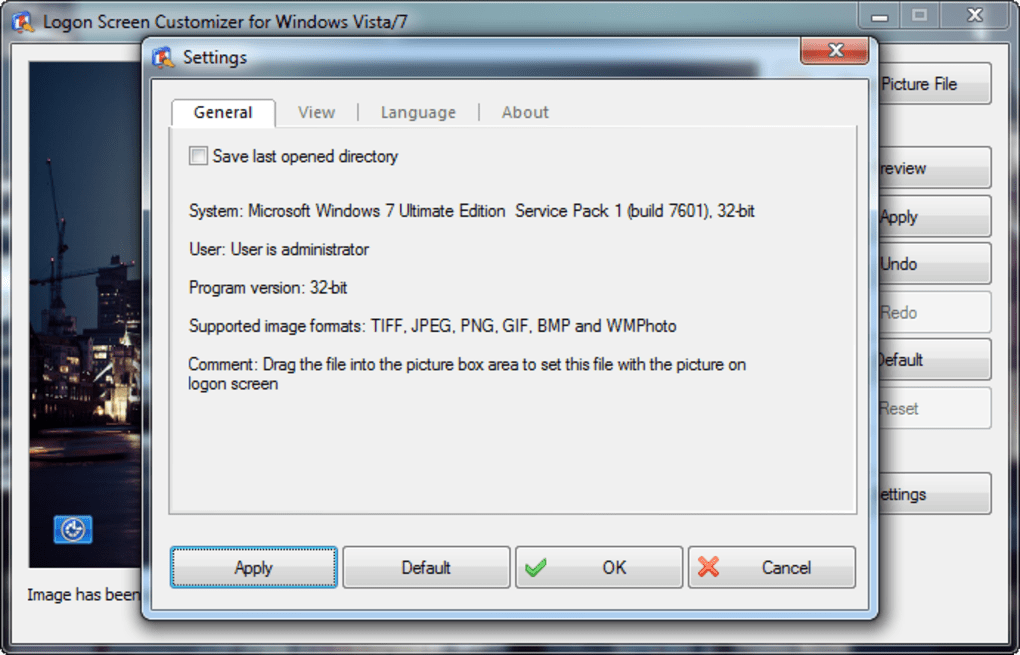
- Settings Tweaks – Minor UI preferences such as theme color for the app window, but no impact on the actual log‑on screen beyond the background.
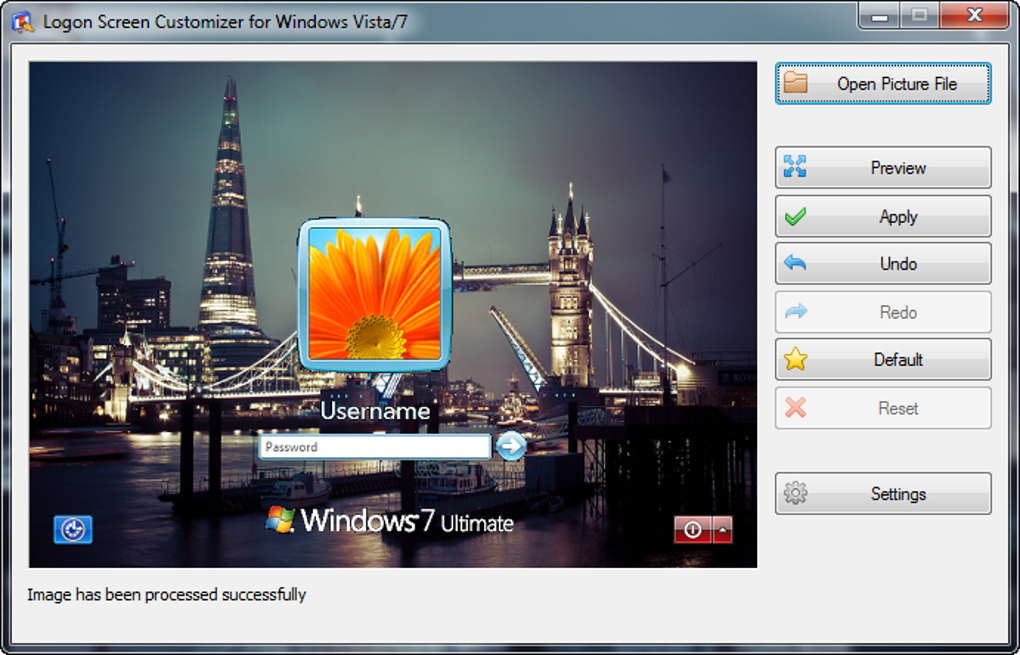
Although the feature list appears modest, each function is purpose‑built for reliability. The image handling engine automatically rescales pictures to match the native screen resolution, preventing distortion or stretching. If you attempt to use an unsupported format, the program gracefully notifies you and offers a conversion suggestion. For users who like to experiment, the “Preview” button shows a real‑time simulation of the log‑on screen, allowing you to see how the image will appear before committing the change. The tool also remembers the last applied image, so you can revert to it instantly if you decide the new background isn’t to your liking.
Installation, Usage & Compatibility
Step‑by‑Step Installation
Downloading and installing VSLogonScreenCustomizer is straightforward. First, click the “Download” button on the official site to retrieve the installer (a small .exe file). Once the file is saved, double‑click it to launch the wizard. The wizard will guide you through the following steps:
- License Agreement – Read and accept the simple EULA; no hidden clauses.
- Destination Folder – Choose the default location (C:\Program Files\VSLogonScreenCustomizer) or a custom path.
- Shortcut Creation – Opt to create a desktop shortcut for quick access.
- Installation – Click “Install” and wait for the progress bar to complete (usually under 30 seconds).
- Finish – Launch the application directly from the wizard or via the newly created shortcut.
The installer does not bundle adware, and it verifies the digital signature of the executable to assure authenticity. After installation, the program registers a small service that writes the selected background image to the appropriate system folder (%SystemRoot%\System32\oobe\info\backgrounds) and updates the registry key responsible for the log‑on screen image path.
How to Use the App
Using VSLogonScreenCustomizer is as easy as 1‑2‑3:
- Open the app and click the “Browse” button to locate an image on your hard drive.
- Press “Preview” to see a mock‑up of how the image will look on the log‑on screen. Adjust the image if necessary (you can re‑select a different file or use an image editor).
- Click “Apply” to save the change. The program will automatically restart the Windows Explorer process to ensure the new background is applied immediately.
If you ever want to revert to the default Windows background, simply click the “Reset to Default” button, which restores the original image and removes any custom files added by the tool.
Operating System Support
VSLogonScreenCustomizer is compatible with Windows 10, Windows 8/8.1, and Windows 7 (both 32‑bit and 64‑bit editions). The app leverages native Windows APIs for image handling, so no additional runtime libraries are required. While it works on Windows 11 in a limited capacity (the log‑on screen on Windows 11 is heavily tied to the lock screen, which the app does not modify), users on the latest OS may experience the same background change but without the animated transition found in newer versions.
Pros, Cons & Frequently Asked Questions
Pros
- Completely free and open‑source.
- Supports all major image formats, including high‑resolution TIFF files.
- Minimal system impact – low RAM and CPU usage.
- Simple, intuitive UI that anyone can master in seconds.
- Secure installation with no hidden bundles or adware.
Cons
- Only background image customization; cannot change user icons or lock‑screen widgets.
- No batch processing – one image at a time.
- Limited to Windows log‑on screen; does not affect Windows 11 lock‑screen features.
- No built‑in image editor – users must edit pictures externally.
FAQ – Frequently Asked Questions
Can I use VSLogonScreenCustomizer on Windows 11?
The tool will change the static background on the Windows 11 log‑on screen, but it does not modify the newer lock‑screen features (such as the animated background or personalized widgets). For full lock‑screen customization on Windows 11, a dedicated utility is required.
Is the software safe to use on a corporate PC?
Yes. VSLogonScreenCustomizer runs with standard user privileges and does not alter system files beyond the designated background folder. However, corporate IT policies may restrict any changes to the log‑on screen, so check with your administrator before installing.
What image dimensions are recommended?
For the best visual result, use an image that matches your screen resolution (e.g., 1920 × 1080 for Full HD, 2560 × 1440 for QHD). The app automatically scales images that are larger or smaller, but using the native resolution prevents any loss of sharpness.
Do I need an internet connection after installation?
No. All functionality is offline. The internet is only required to download the installer or to fetch updates, which are optional and can be disabled in the settings.
Can I revert to the original Windows background?
Absolutely. The “Reset to Default” button restores the original log‑on screen image and removes any custom files the app added, making the process completely reversible.
Conclusion & Call to Action
VSLogonScreenCustomizer delivers exactly what its name promises: a simple, free, and secure way to personalize the Windows log‑on background. While it lacks advanced features like user‑icon swapping or lock‑screen widgets, its focused approach ensures that the core task—changing the static log‑on picture—is performed flawlessly, without unnecessary bloat or security concerns. If you spend a lot of time at your workstation and crave a visual refresh every time you sign in, this tool is a practical addition to your Windows customization toolkit. Download it today, pick a favorite photo, and enjoy a more personalized login experience in seconds.
Ready to give your Windows log‑on screen a fresh look? Click the download button below, install the app, and start customizing instantly. Your desktop’s first impression is about to get a stylish upgrade.







